
This blog post is designed as a tutorial to walk a new RV Scribeware user through the steps required to configure RV Scribeware and perform RV inspections.
The software is designed to be as intuitive as possible, so creating a report using the RV Scribeware template requires little training. However, to maximize ScribeWare’s quality and efficiency, you should use its advanced customization features.
Download Scribeware
For your desktop PC, Microsoft Windows and Apple macOS, download the Scribeware software icon below.
Onboarding Questions
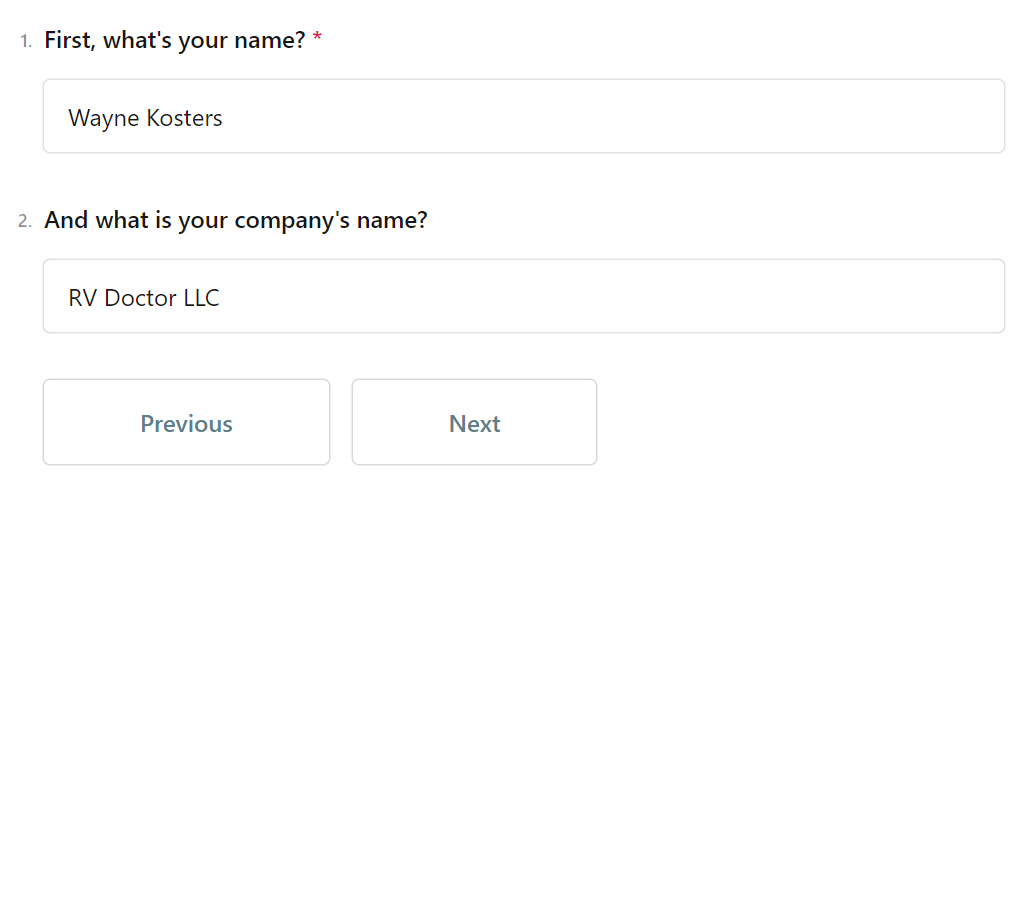
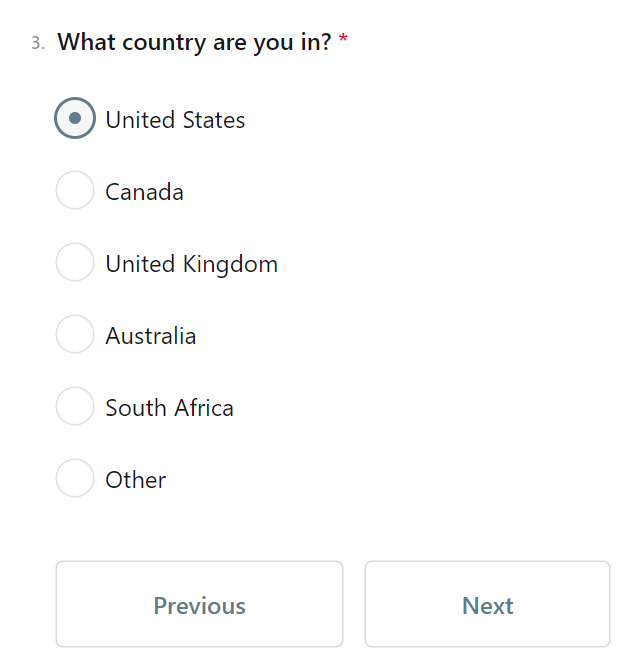
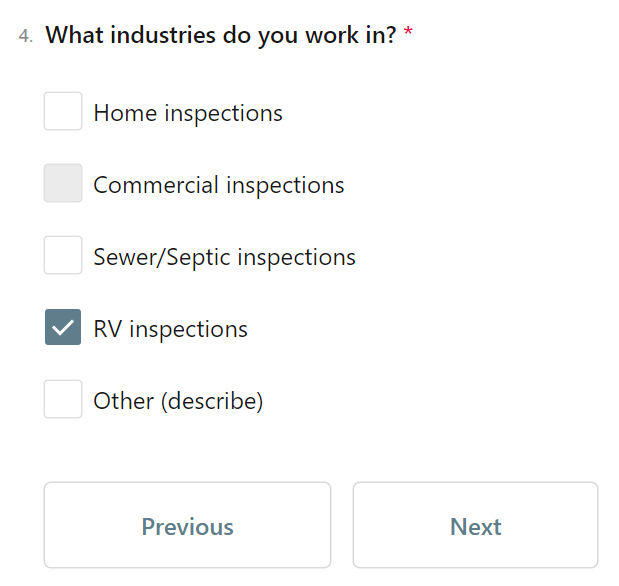
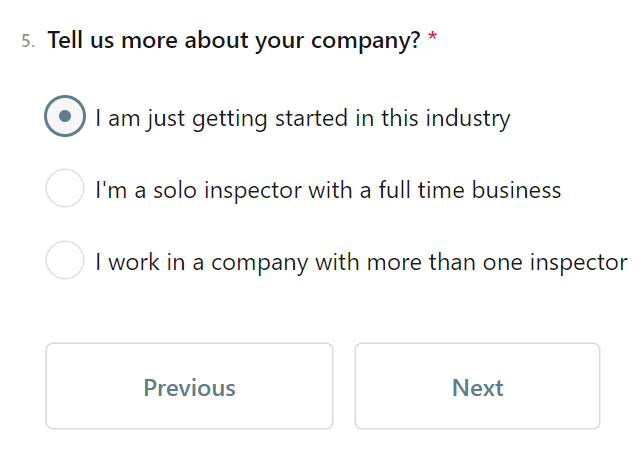
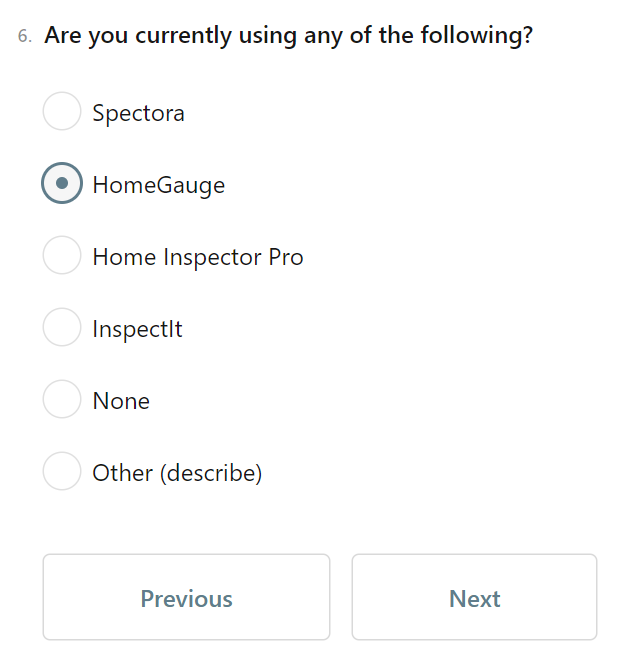
When you start the desktop version after configuring your user account, the software will ask you several onboarding questions.
Adding Logos
Select the Settings gear icon in the desktop application’s lower left corner. Add your certification logo(s) to the Profile page. On the Company section, load your business information and upload your company logo by selecting ‘PRINT LOGO’. A header logo is not required.
Reviewing Boilerplate
During the initial configuration of the RV Scribeware installation, we will add ‘Boilerplate’ information for an RV Inspection to your account, describing the scope, chapters, and sections, and provide it as is. Please edit the provided information after legal review. The following describes boilerplate customizations;
Agreements
Agreements are available and are provided as is at Sample Agreements. From the Edit Settings, select the Contracts option along the left options. Add the agreements; RV Scribeware does not have a field for the RV’s Year-Make-Model and VIN.
We have configured the agreements to use the ‘Agent Name’ field on the ‘Client/Property Information’ page. For each of the gray items in the agreement, such as (Company Name), select that item, and then, on the top toolbar, select ‘Placeholders’ and drop down to that item. Repeat this process for all grayed items.
After making these changes, start a new report with your name, email, phone #, and sample Year-Make-Model & VIN to verify your contracts/agreements are correct.
The following describes setting up contracts in Scribeware;
Advanced, CSS
In the current versions of the Scribeware desktop software, under Client/Property Information, there is an option to Add Report-Specific CSS. It is recommended that this be enabled, which will, on the report cover, indicate ‘Inspection report for the RV at’.
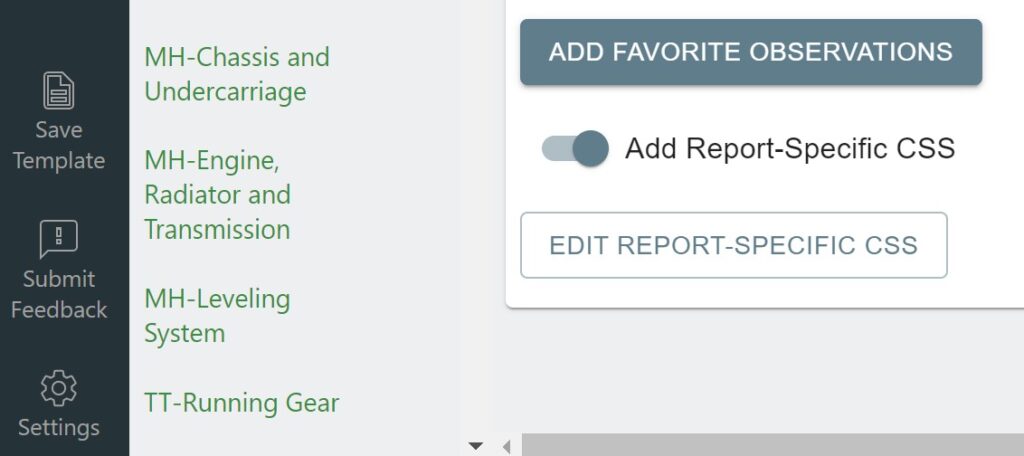
The following is the Custom Report CSS information in the Advanced section of the setup.
.header-color:before {
  position: absolute;
  content: '';
  top: 0;
  left: 0;
  width: 100%;
  height: 100%;
  background-color: rgba(21, 114, 117, 0.0); /* HEADER COLORS */
}

/*#1️⃣1️⃣🚩LIGHT COLOR BACKGROUND WITH LIGHT BORDER IN SUMMARY*/
#summary ul li ul {padding-top: 0px;}
#summary ul li ol {padding-top: 0px;}
#summary ul {border-color: inherit;}
#summary > div > ul > li {
background: rgba(240,237,237, 1);  /*1 is the transparency*/
padding: 15px;
border-radius: 05px;
border-width: 0.25px;
border-style: solid;
border-color: inherit;
margin-top: 6px;
}

p.intro {visibility: hidden; position: relative;}
p.intro::before {content: "Inspection report for the RV at"; visibility: visible; position: absolute; right: 0;}
More information on settings can be found in this YouTube link.
Finally, if you have questions setting up or need help to configure RV Scribeware to do RV Inspections, please email info@rvscribeware.com.